
TASK-2:Establishing a Connection Between the Timetable Management System Application on EC2 and the RDS Database Service
Relational Database

👋Hello, Hashnode community! I'm subbaramireddy, a passionate DevOps Engineer with a relentless commitment to optimizing software development workflows and infrastructure management. 🚀 Hands-on experience in the DevOps field, I've honed my skills in AWS cloud services, containerization, and CI/CD pipelines. As an AWS Certified Developer, I'm well-versed in leveraging cloud technologies to drive efficiency and innovation. 💡 I firmly believe in the power of continuous improvement. My journey began with an internship, where I immersed myself in the intricacies of DevOps, from deploying web applications to orchestrating containerized solutions. I've also delved into AWS CDK, enhancing security through RDS instance policies, and creating foundational infrastructure with precision. 🌐 My goal is to share insights, best practices, and the latest trends in the DevOps landscape. I'm excited to connect with like-minded professionals, engage in meaningful discussions, and learn from the diverse experiences of the Hashnode community. 📝 Let's explore the ever-evolving world of DevOps together. Feel free to connect with me, ask questions, or share your own insights. Together, we can drive innovation and efficiency in the tech world!
Relational Database Service (RDS)
Amazon Relational Database Service (Amazon RDS) is a managed database service provided by Amazon Web Services (AWS) that makes it easier to set up, operate, and scale relational databases in the cloud. It's designed to simplify the database management tasks, such as provisioning, patching, backup, recovery, and scaling so that you can focus on your application development rather than the underlying database infrastructure.
Steps
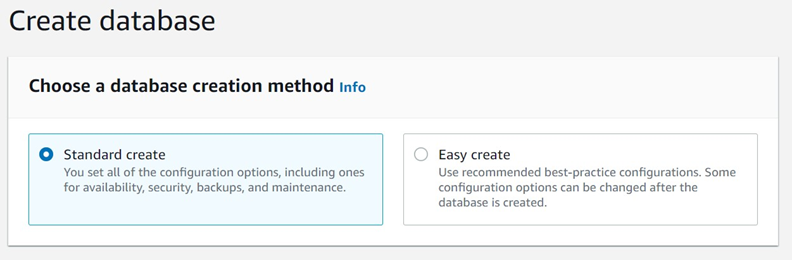
- Create the database with a standard creation method to configure manually.
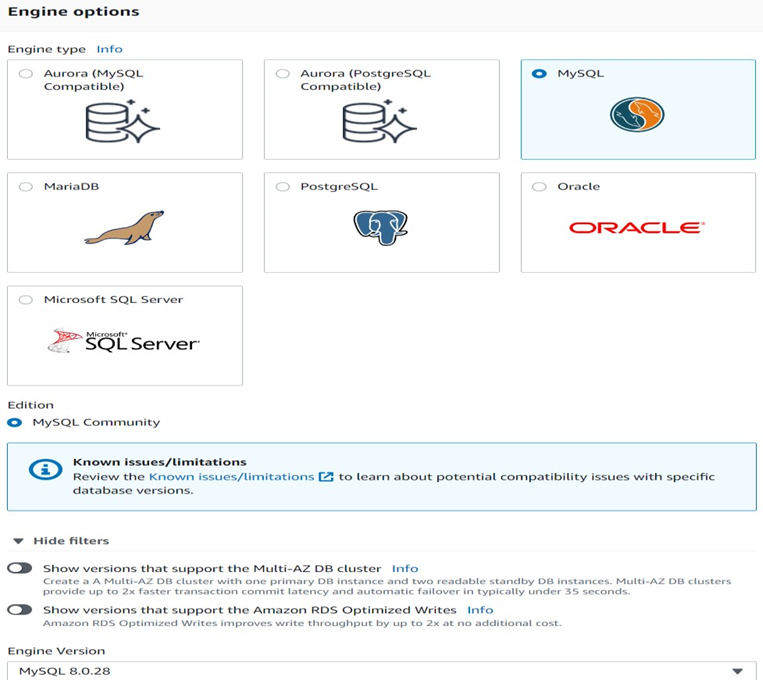
2. Choose the MySQL database engine needed for our application, specifically version MySQL 8.0.28.
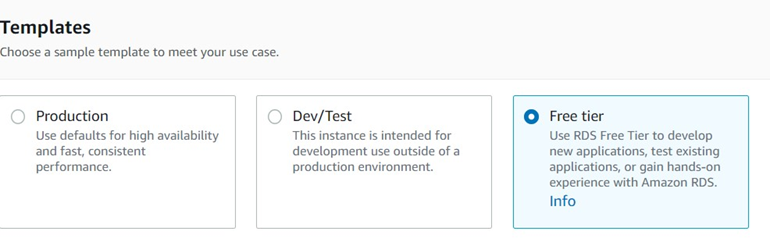
3. Opt for the free-tier option within the templates that best suits our use case.
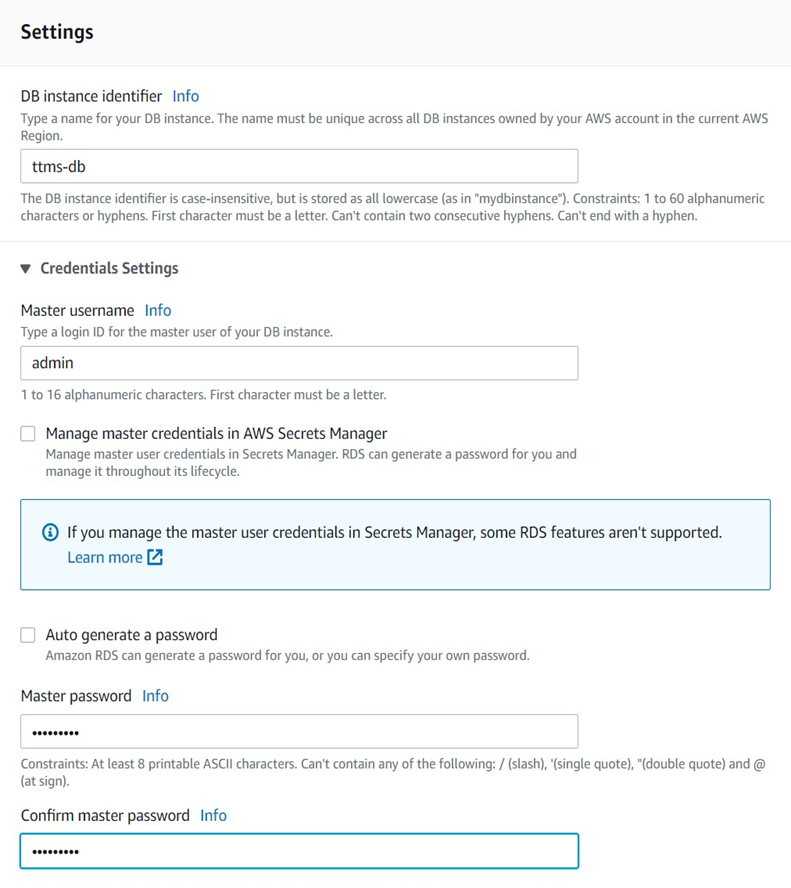
4. Set up the database settings, including the database name and access credentials, for connecting to the database from the application.
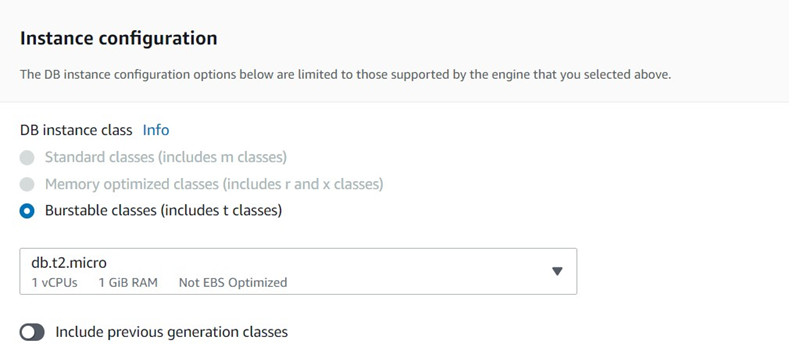
5. Configure the DB instance using the 'db.t2.micro' as the DB instance class.
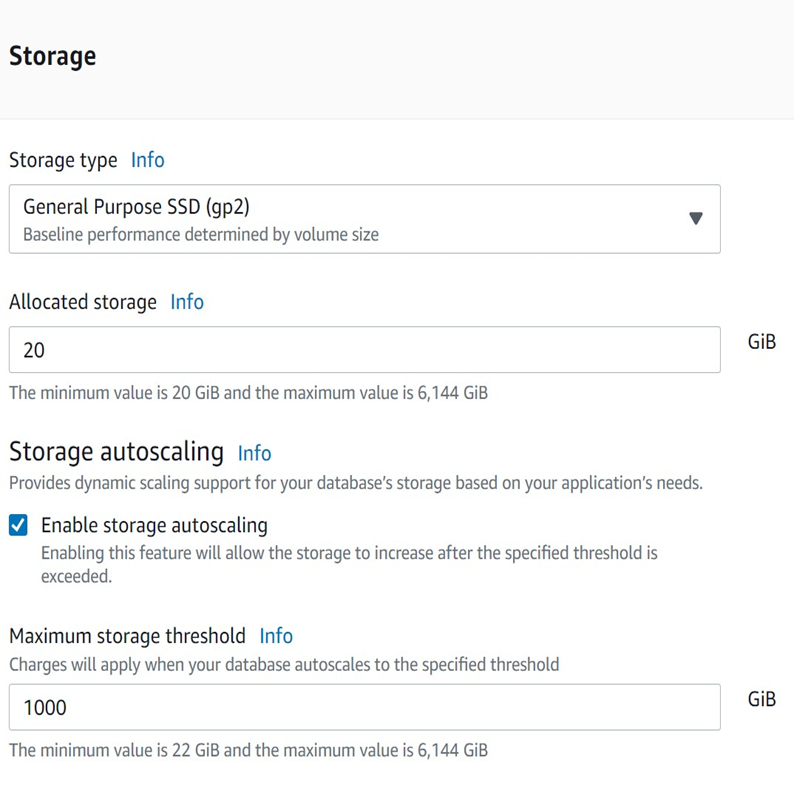
6. Choose the storage type, allocate storage capacity, and enable storage autoscaling to automatically scale the database storage when it exceeds a specific threshold.
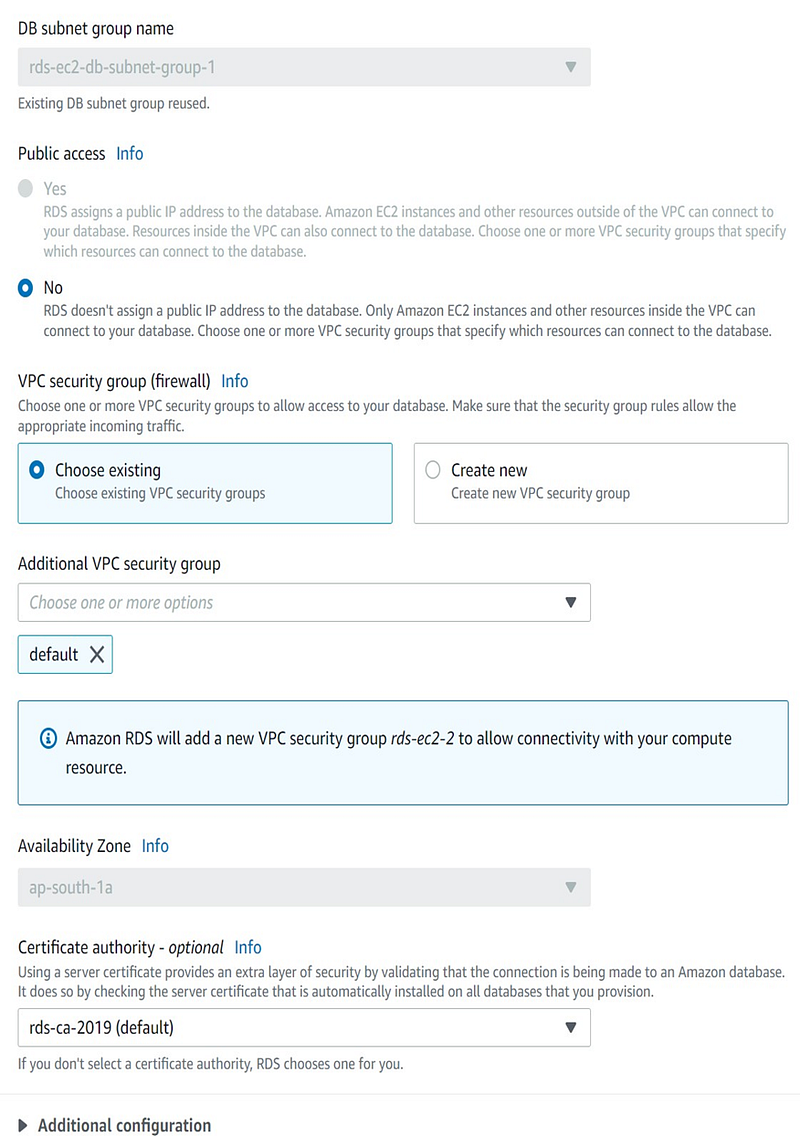
7. Configure the connectivity settings to allow the database to connect only to the specified EC2 instance.
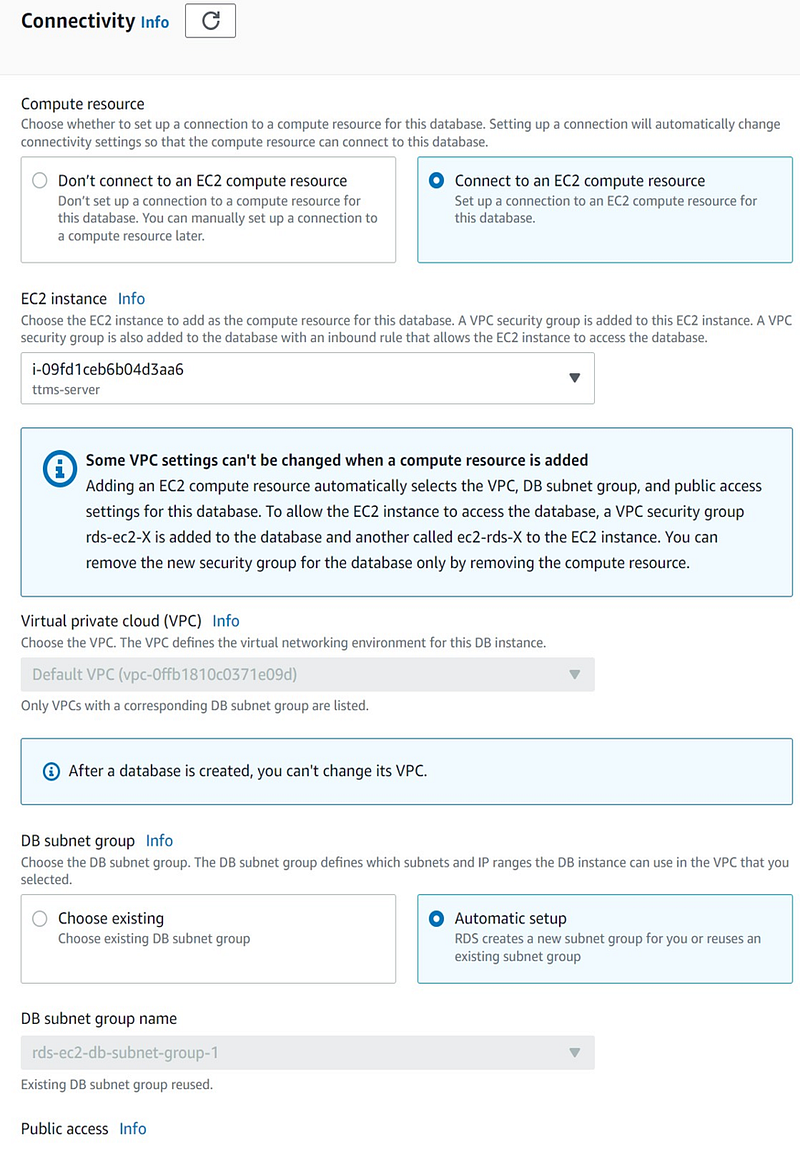
8. Choose the 'existing VPC' option, specifically the default VPC, and ensure that public access is automatically disabled.
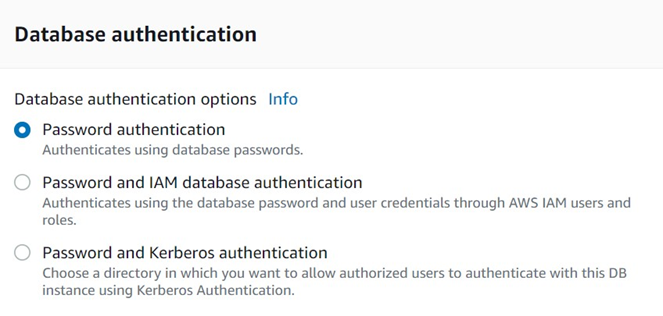
9. In the Database Authentication section, select the option for password authentication to establish a connection to the database using a password.
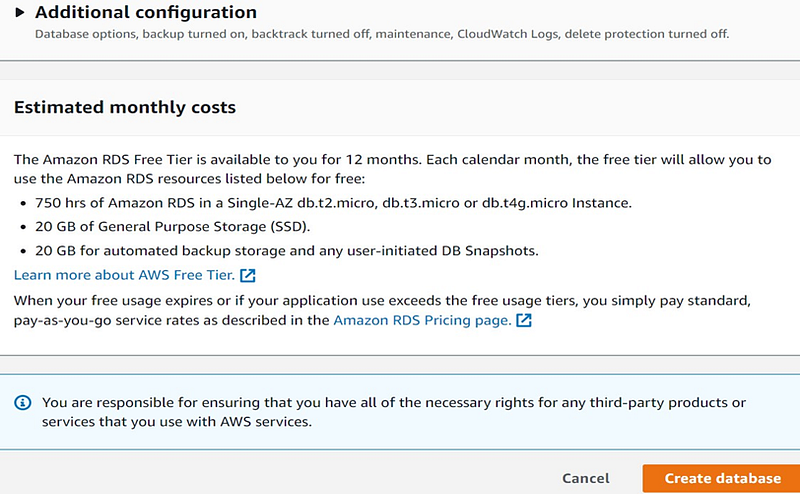
10. You can review the estimated monthly cost of the RDS and proceed by clicking on the 'Create Database' option
11. The 'ttms-db' has been successfully created, and its status is now 'Available'.

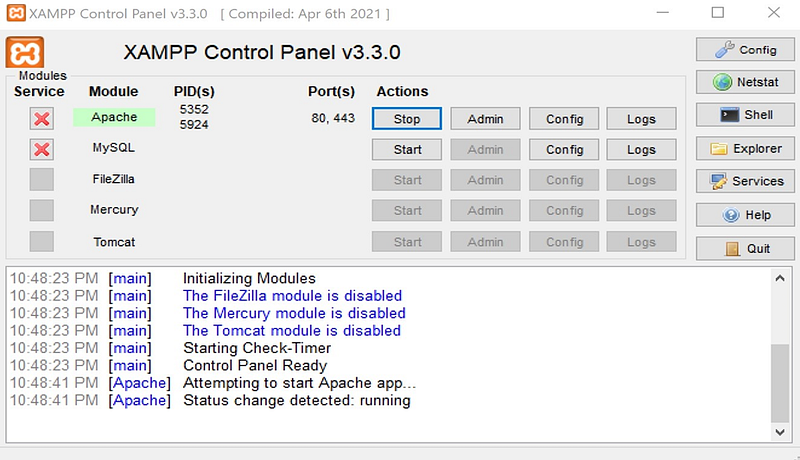
12. Launch the XAMPP control panel and initiate the Apache server using the default ports 80 and 443.
13. Access the application by using the public IPv4 address of the instance with port 80.
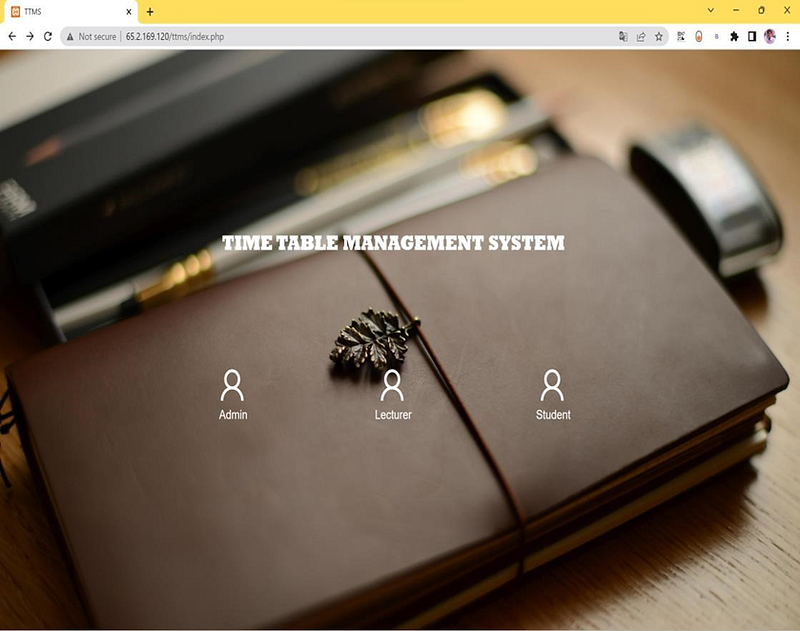
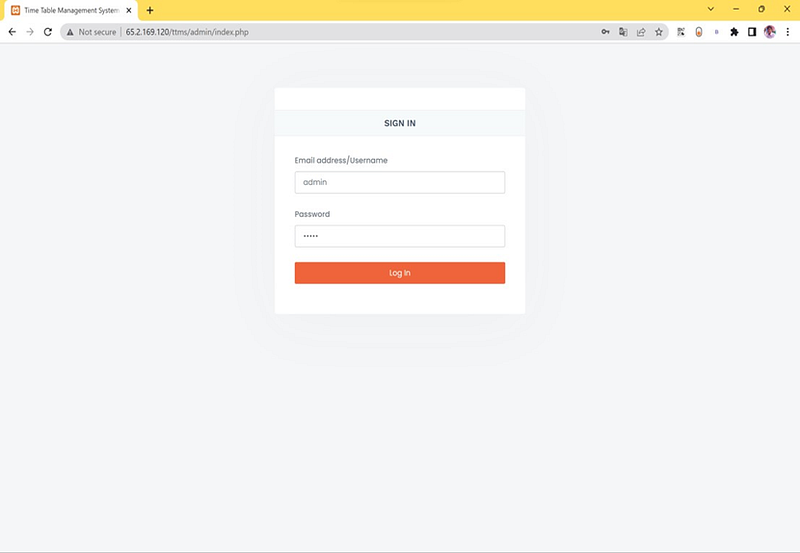
14. Select the "admin" option and proceed to log in using your provided credentials.
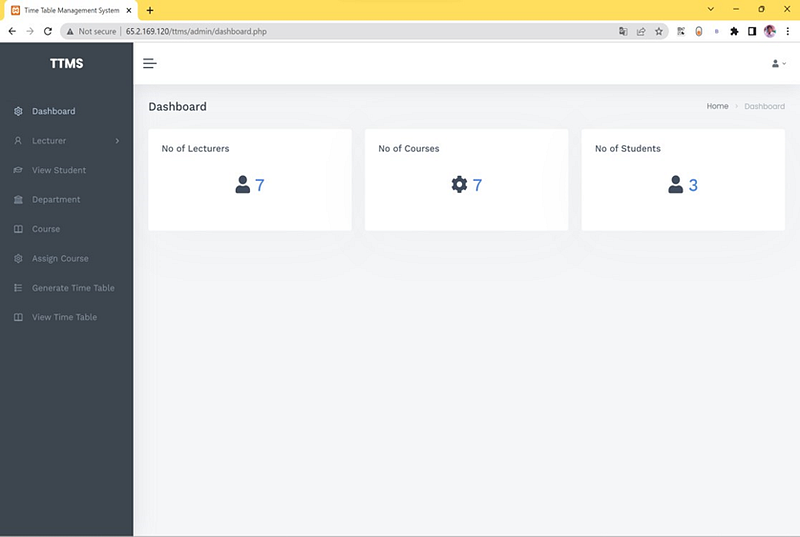
15. You can now access the admin dashboard, which displays details of the application.
Thanks for reading! I hope you found this helpful and informative.
I'm always happy to connect with fellow tech enthusiasts and answer any questions you may have. Don't forget to follow me for more updates on tech, programming, and more.😄😄
Follow me on LinkedIn to see interesting posts like this : ) Linkedin


