TASK-6:Deploy the Containerized application in Elastic Container Service (ECS) CaaS.
Elastic Container Service

👋Hello, Hashnode community! I'm subbaramireddy, a passionate DevOps Engineer with a relentless commitment to optimizing software development workflows and infrastructure management. 🚀 Hands-on experience in the DevOps field, I've honed my skills in AWS cloud services, containerization, and CI/CD pipelines. As an AWS Certified Developer, I'm well-versed in leveraging cloud technologies to drive efficiency and innovation. 💡 I firmly believe in the power of continuous improvement. My journey began with an internship, where I immersed myself in the intricacies of DevOps, from deploying web applications to orchestrating containerized solutions. I've also delved into AWS CDK, enhancing security through RDS instance policies, and creating foundational infrastructure with precision. 🌐 My goal is to share insights, best practices, and the latest trends in the DevOps landscape. I'm excited to connect with like-minded professionals, engage in meaningful discussions, and learn from the diverse experiences of the Hashnode community. 📝 Let's explore the ever-evolving world of DevOps together. Feel free to connect with me, ask questions, or share your own insights. Together, we can drive innovation and efficiency in the tech world!
Elastic Container Registry:
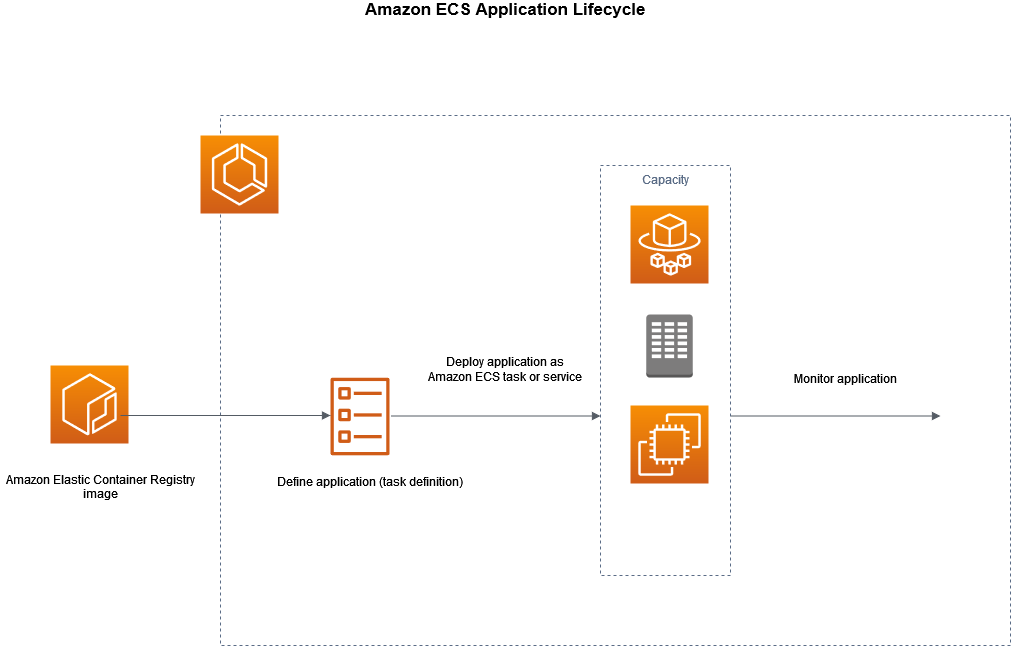
Amazon Elastic Container Registry (ECR) is a fully managed Docker container registry designed for storing, sharing, and deploying container images with ease.
Elastic Container Service:
Amazon Elastic Container Service (ECS) is a fully managed container orchestration service that simplifies the deployment, management, and scaling of containerized applications.
ECS objects:
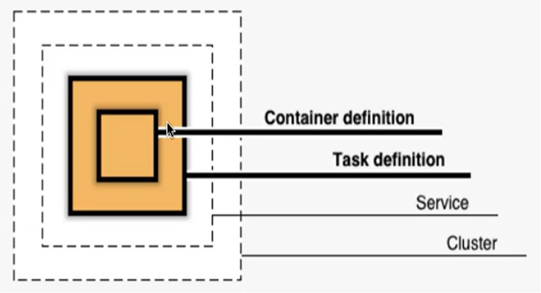
1. Cluster
2. Service
3. Task definition
4. Container definition
Cluster:
An ECS cluster is a logical grouping of tasks and services. It provides the infrastructure for running your tasks. You can have multiple clusters in an AWS account.
Service:
An ECS service is used to define how many copies of a task should be running and maintain the desired count. It ensures that the specified number of tasks are running and automatically replaces any failed tasks.
Task Definition:
A task definition serves as a blueprint for our application, describing one or more containers along with their attributes.
Container Definition:
A container definition in Amazon Elastic Container Service (ECS) is a blueprint that specifies how a Docker container should run within an ECS task. It includes details like the Docker image to use, resource allocation (CPU and memory), environment variables, port mappings, volume mounts, logging configuration, networking settings, health checks, and more. These definitions are essential for orchestrating containerized applications, enabling you to define and configure individual containers within a task to ensure they run correctly and efficiently in the ECS environment.
Steps:
Create the ECR and Push the image to the registry
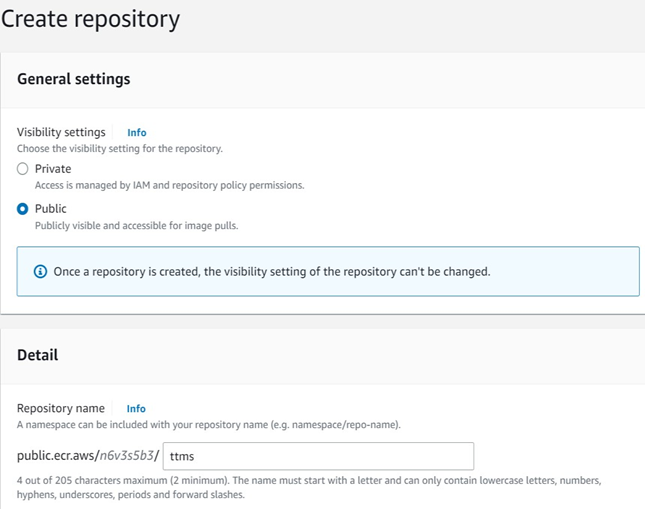
Create a public repository with the repository name as ttms.
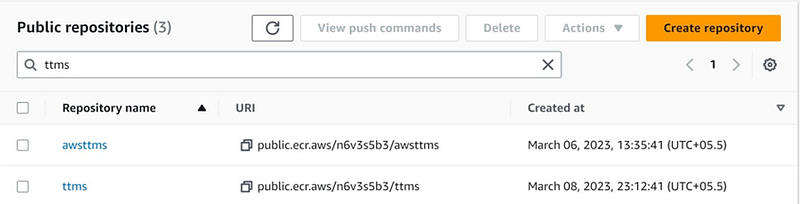
The 'ttms' public repository has been successfully created. Please click on the 'ttms' option to access it.
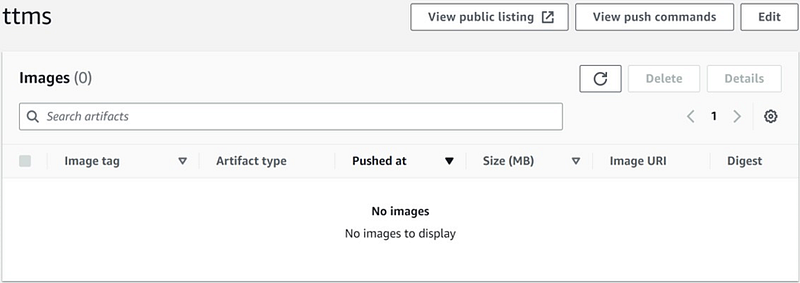
You can view the images that have been pushed to the 'ttms' repository and click on the 'View Push Commands' option.
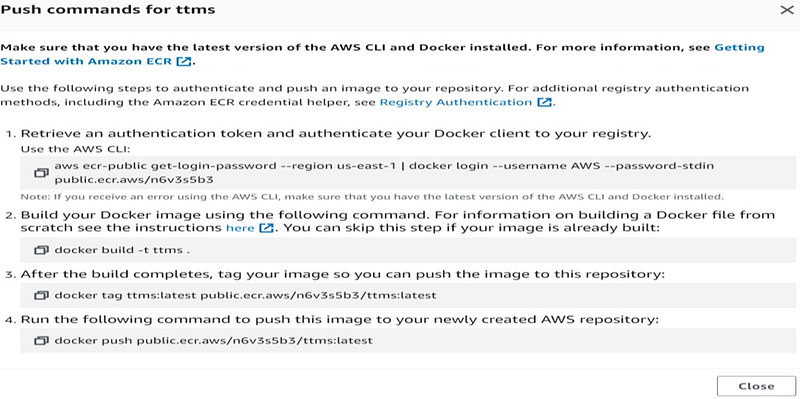
We can access the list of commands that were employed to construct the image and subsequently push it to the 'ttms' repository.
To push our Docker image to the AWS Elastic Container Registry (ECR), it is essential to have the AWS Command Line Interface (CLI). You can download the CLI by visiting the following link: AWS CLI Download.
To establish a connection between our local machine and Amazon Elastic Container Registry (ECR), it is imperative to configure the AWS Command Line Interface (CLI) with the access key and secret access key. You can do this by using the following command: aws configure. This command will prompt you to enter the access key and secret access key that was generated for your AWS user account.

To obtain an authentication token and authenticate your Docker client with your registry, you can utilize the AWS CLI.

Build your Docker image using the following command docker build -t . ttms.
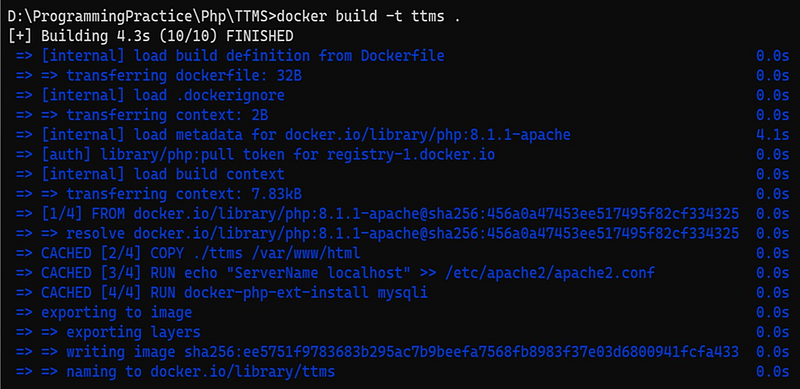
After the build process is completed, you should tag your image so that you can subsequently push it to this repository.

To push this image to your recently created AWS repository, please execute the following command: docker push ecr-repo/id/image:tag.
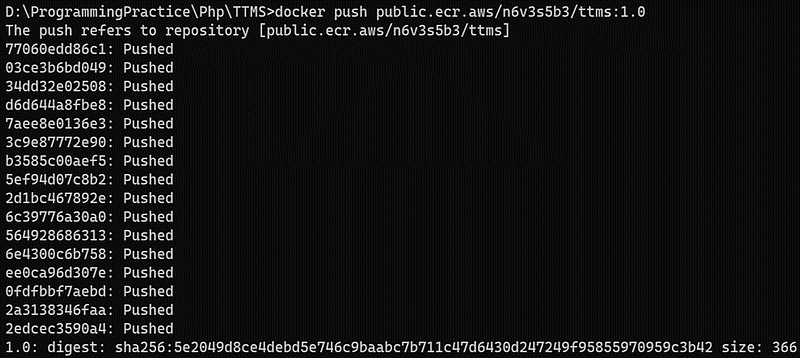
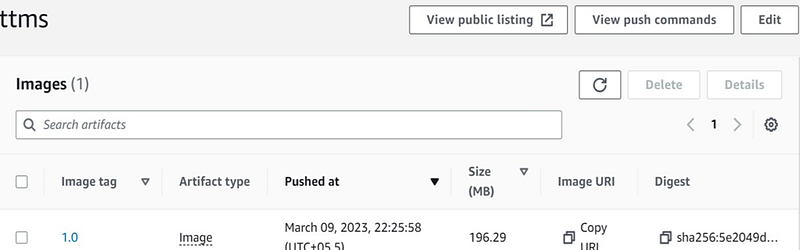
We can now observe the 'ttms' image that has been successfully pushed into the 'ttms' repository with version 1.0.
create ECS Cluster
Access the AWS Management Console, navigate to the Elastic Container Service (ECS) and select 'Clusters'.
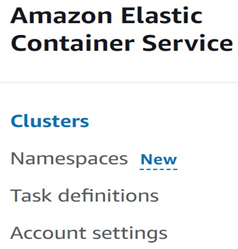
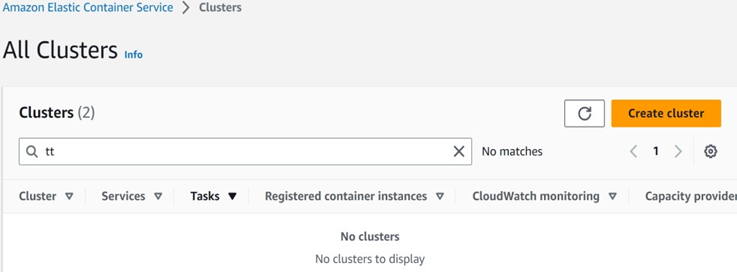
You can view the list of created clusters. To create a new cluster, please click on 'Create Cluster'
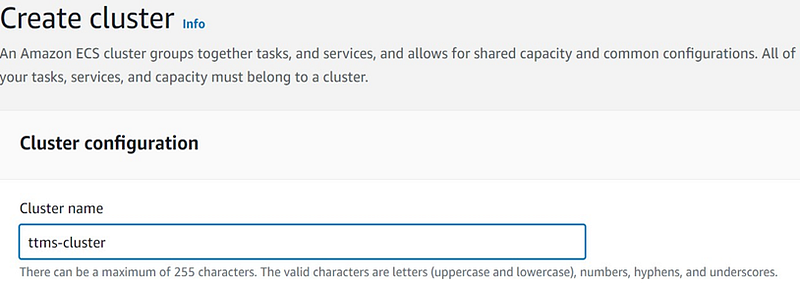
Create a cluster with the name 'ttms-cluster'.
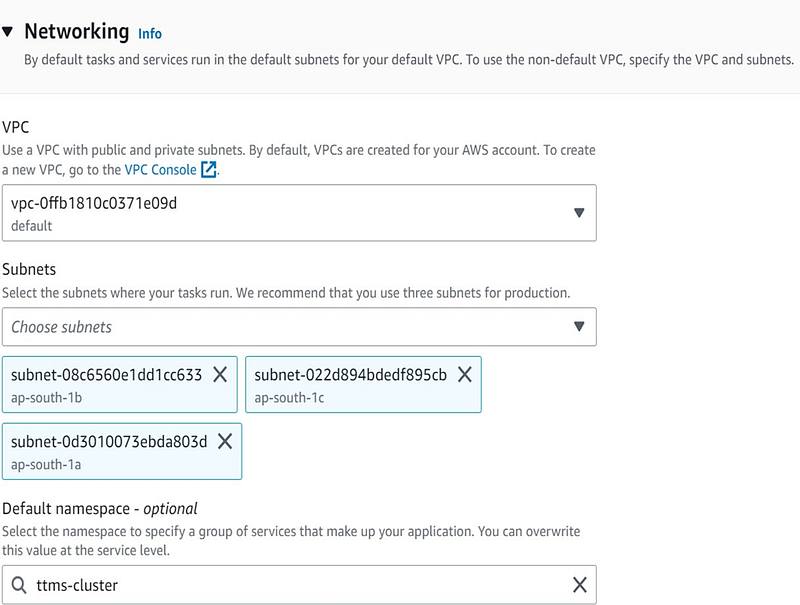
In the 'Network' section, please choose the 'Default VPC' option with three subnets, and select the 'ttms-cluster' namespace.
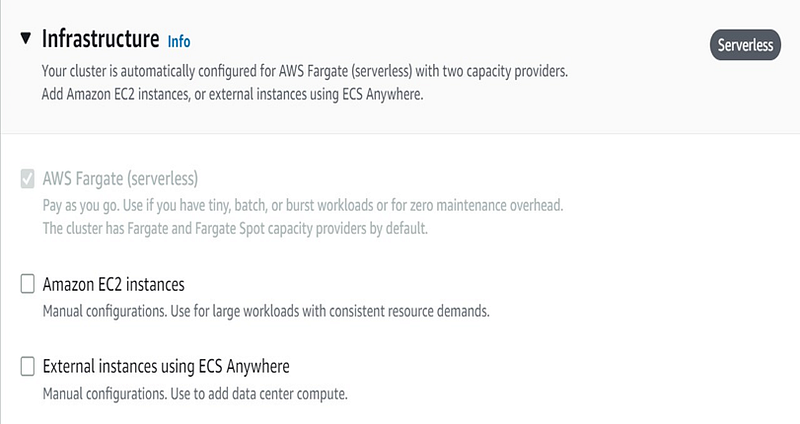
In the 'Infrastructure' section, the default option is 'AWS Fargate (Serverless)'.
In the 'Monitoring' section, please enable 'Use Container Insights' to store metrics and other information in CloudWatch, and then click on the 'Create' button.
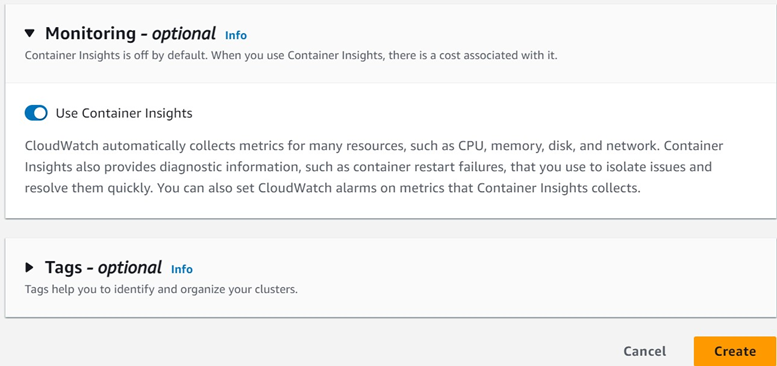
Once the 'ttms-cluster' is successfully created, you will receive a confirmation message as shown below:

Create the Task Definition with the registry image
In ECS, select 'Task Definitions' to create a new task definition.
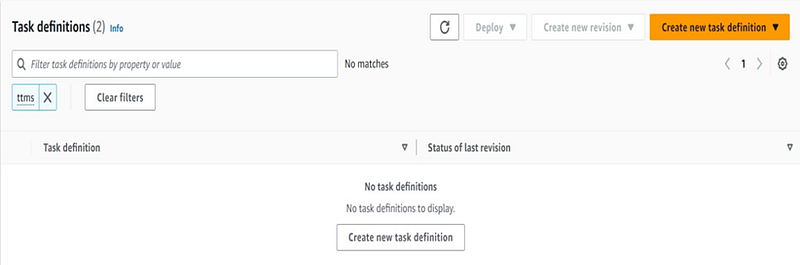
To view the list of task definitions, please navigate to the 'Task Definitions' section and To create a new task definition, click on the 'Create New Task Definition'.
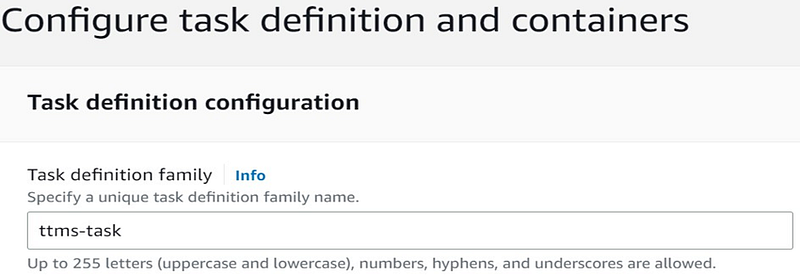
In the Task Definition Configuration, please specify the task definition as 'ttms-task'.
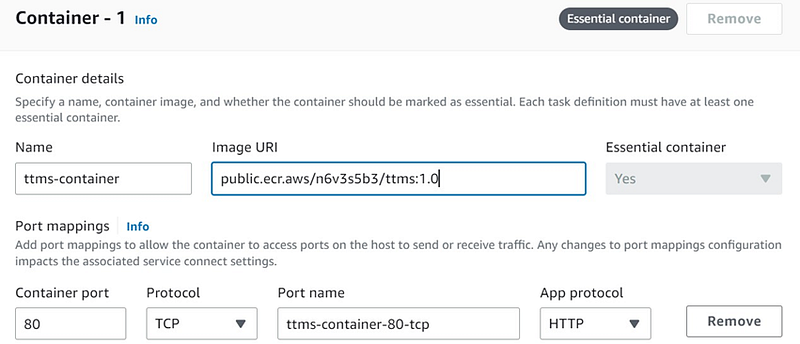
In the 'Container Details' section, please name the container 'ttms-container' provide the Image URI from ECR, set the Container protocol to HTTP, and map the container port to 80 using the TCP protocol.
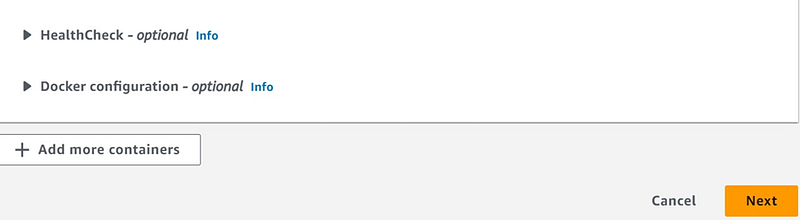
Health Check and Docker Configuration are optional. To add more containers, click on 'Add More Containers,' and then proceed by clicking 'Next'.
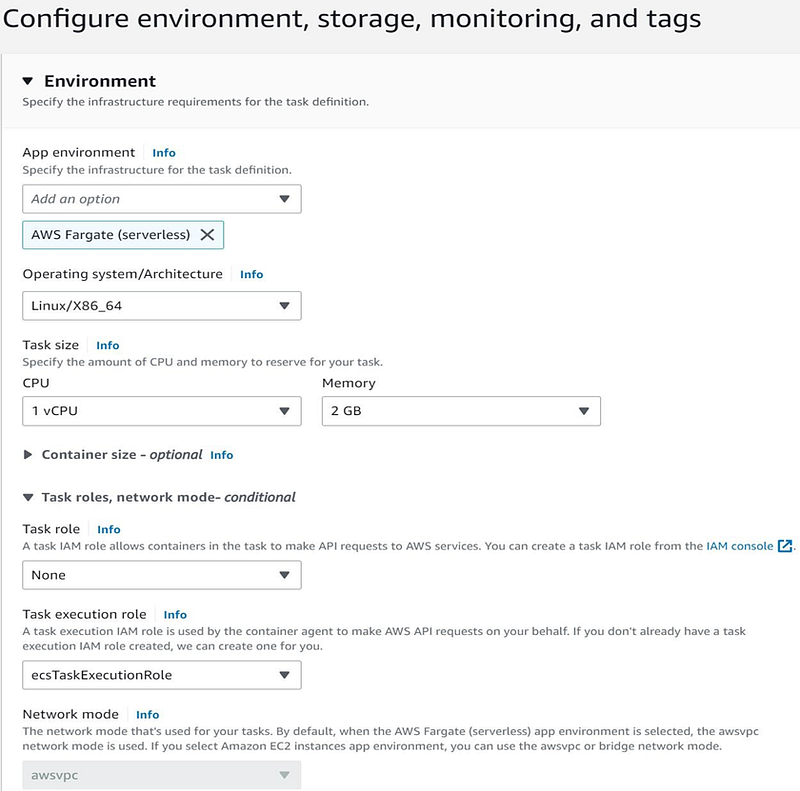
To configure the container environment using the AWS Fargate (serverless) service, follow these steps:
Select 'Linux/X86_64' as the Operating System.
Specify the Task Size with 1 vCPU and the desired amount of 2GB memory.
Choose the Task Execution Role as 'ecsTaskExectionRole'.
Note that the default network mode for the Fargate service is 'awsvpc'.
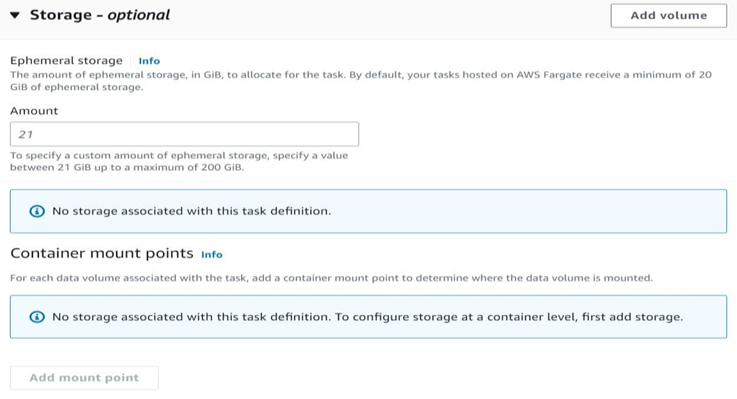
In the Storage section, you have the option to specify the mount point for the container.
In the Monitoring and Logging section, you can access the CloudWatch details for the container logs.
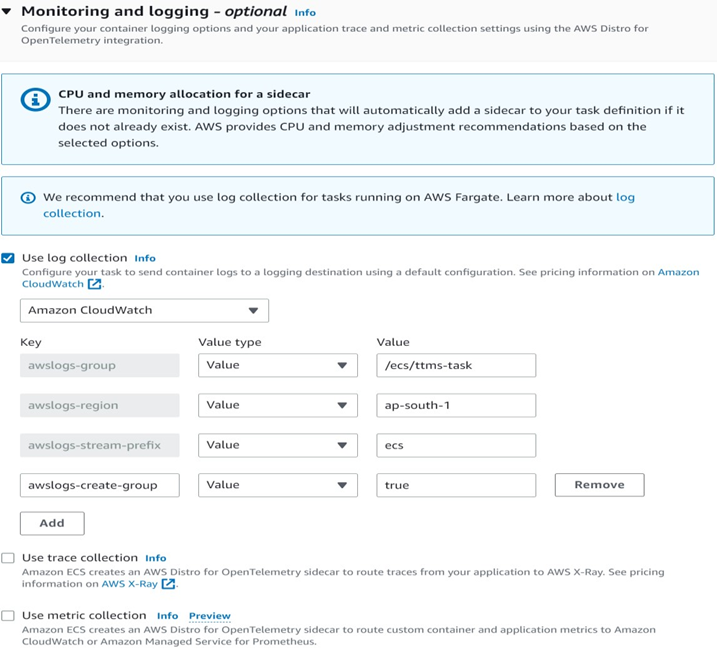
In the Monitoring and Logging section, you can view the CloudWatch details for the container logs.
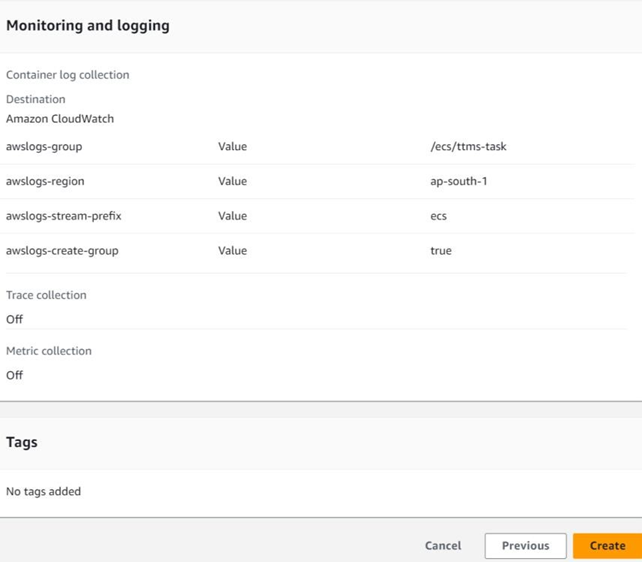
After successfully creating the task definition, you will see the following confirmation message.

Create a Task with the Task definition
You can locate the 'ttms-cluster' cluster and click on it.

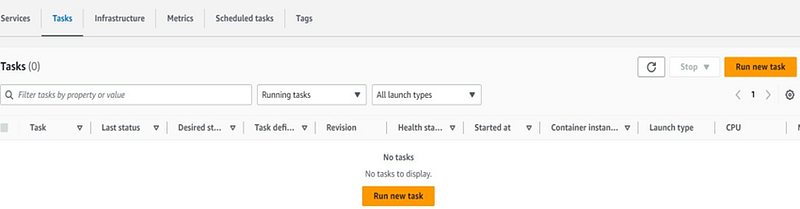
You can access the task wizard and click on 'Run New Task' to initiate the task.
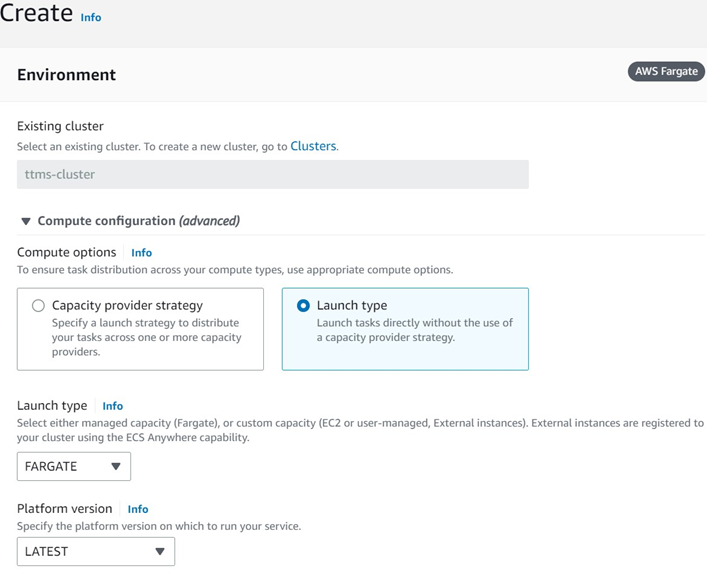
Create a new run task from the 'ttms-cluster' with the compute configuration set to 'Launch type' to bypass the capacity provider strategy.
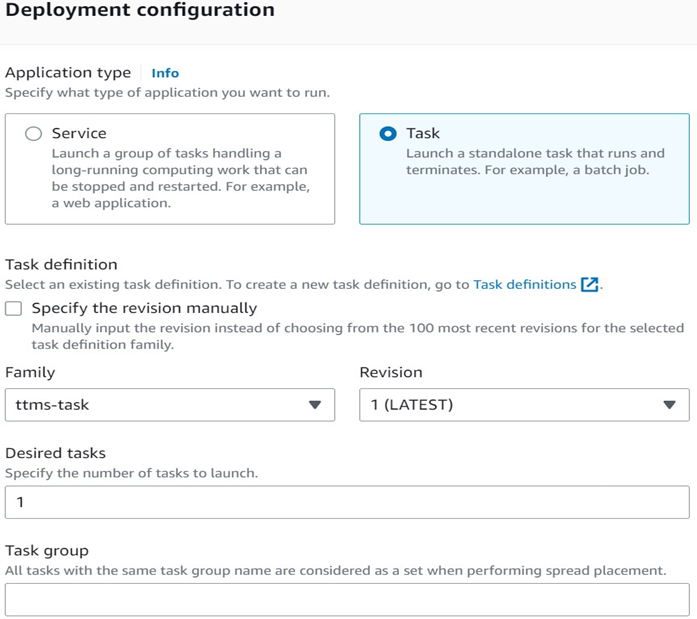
In the Deployment Configuration, choose 'Application Type' as 'Task,' set 'Family' to 'ttms-task,' and specify 'Revision' as 'Latest' with the desired task count set to 1.
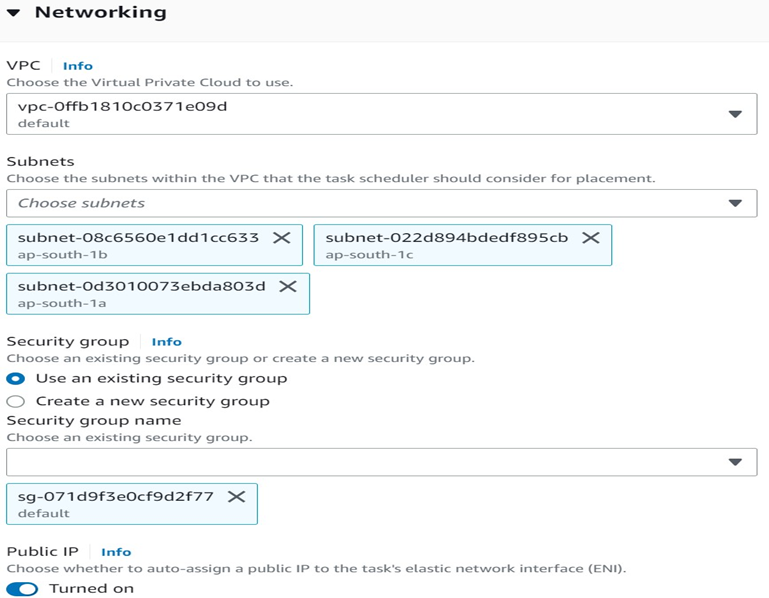
In the Network section, select the default VPC, choose the desired subnets, use the default security group, and enable public IP.
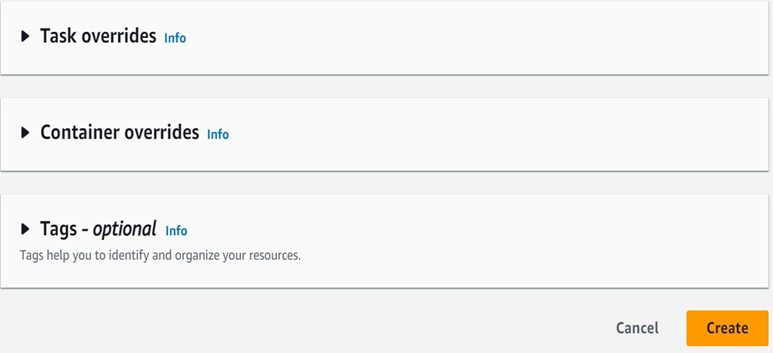
In the Task Overrides and Container sections, leave them as they are, and proceed by clicking the 'Create' option.
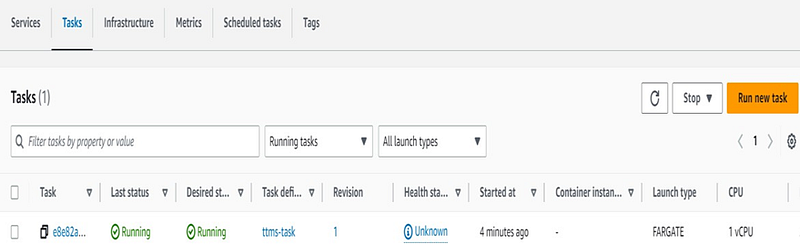
You will find the 'ttms-task' in the running state in the Task Wizard. Please click on it.
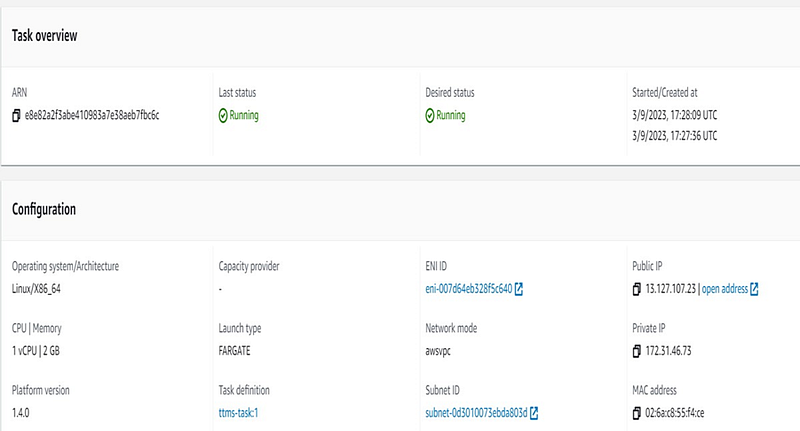
From the Task Overview, you can access the task details. Please navigate to the Configuration section and click on the Public IP.
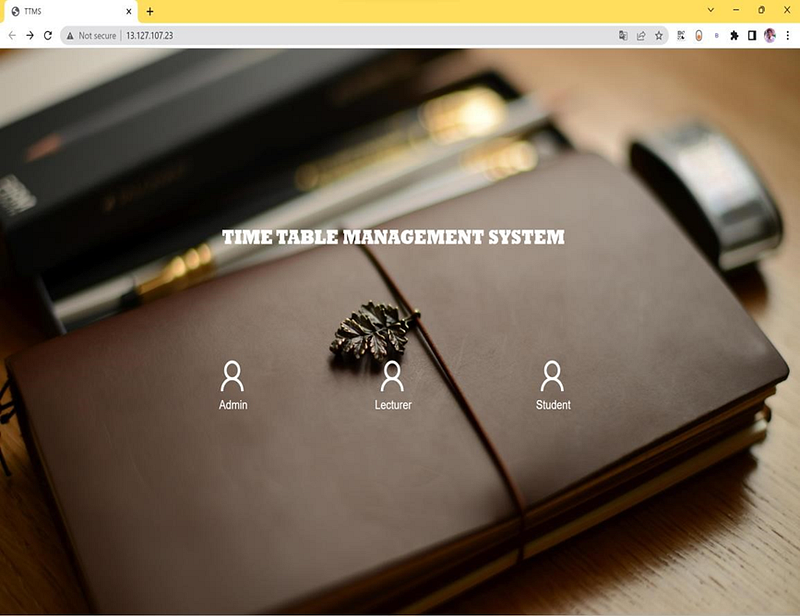
You can access the container using the provided Public IP address, as demonstrated below.
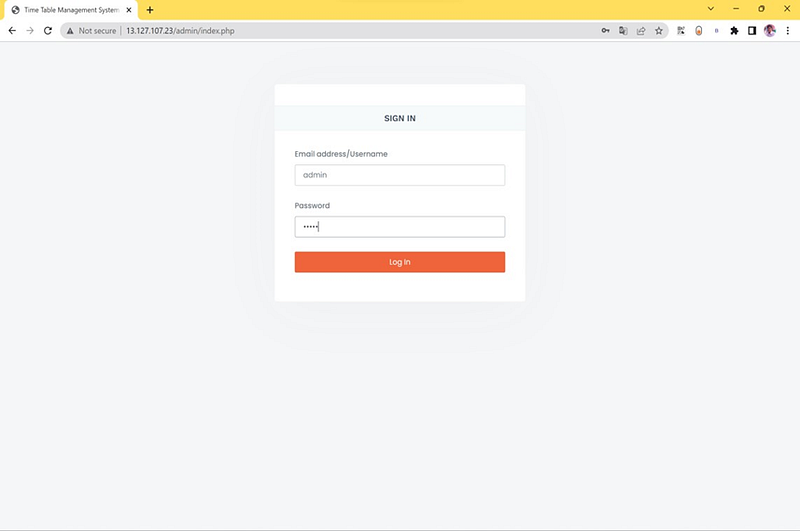
The admin login page will be displayed, as depicted below.
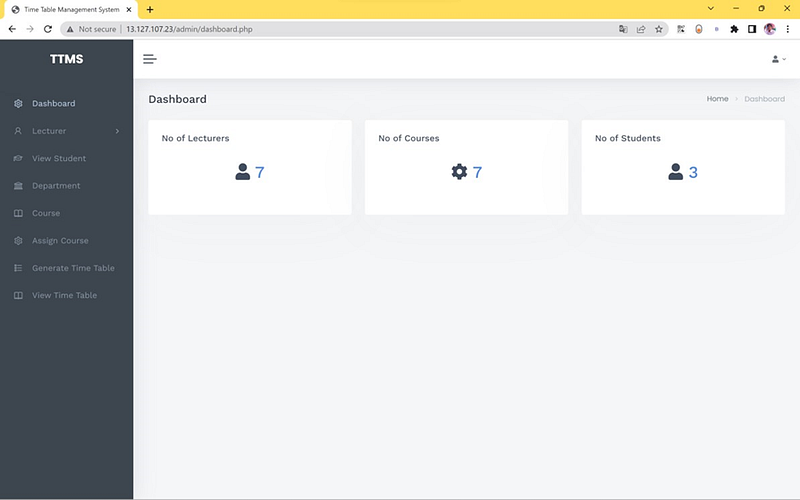
Ultimately, you can access the Admin dashboard, which provides details retrieved from the database."
Thanks for reading! I hope you found this helpful and informative.
I'm always happy to connect with fellow tech enthusiasts and answer any questions you may have. Don't forget to follow me for more updates on tech, programming, and more.😄😄
Follow me on LinkedIn to see interesting posts like this : ) Linkedin


